
Keep the Conversation Moving
Bring your team and AI Teammates together in channels, direct messages, and threads.
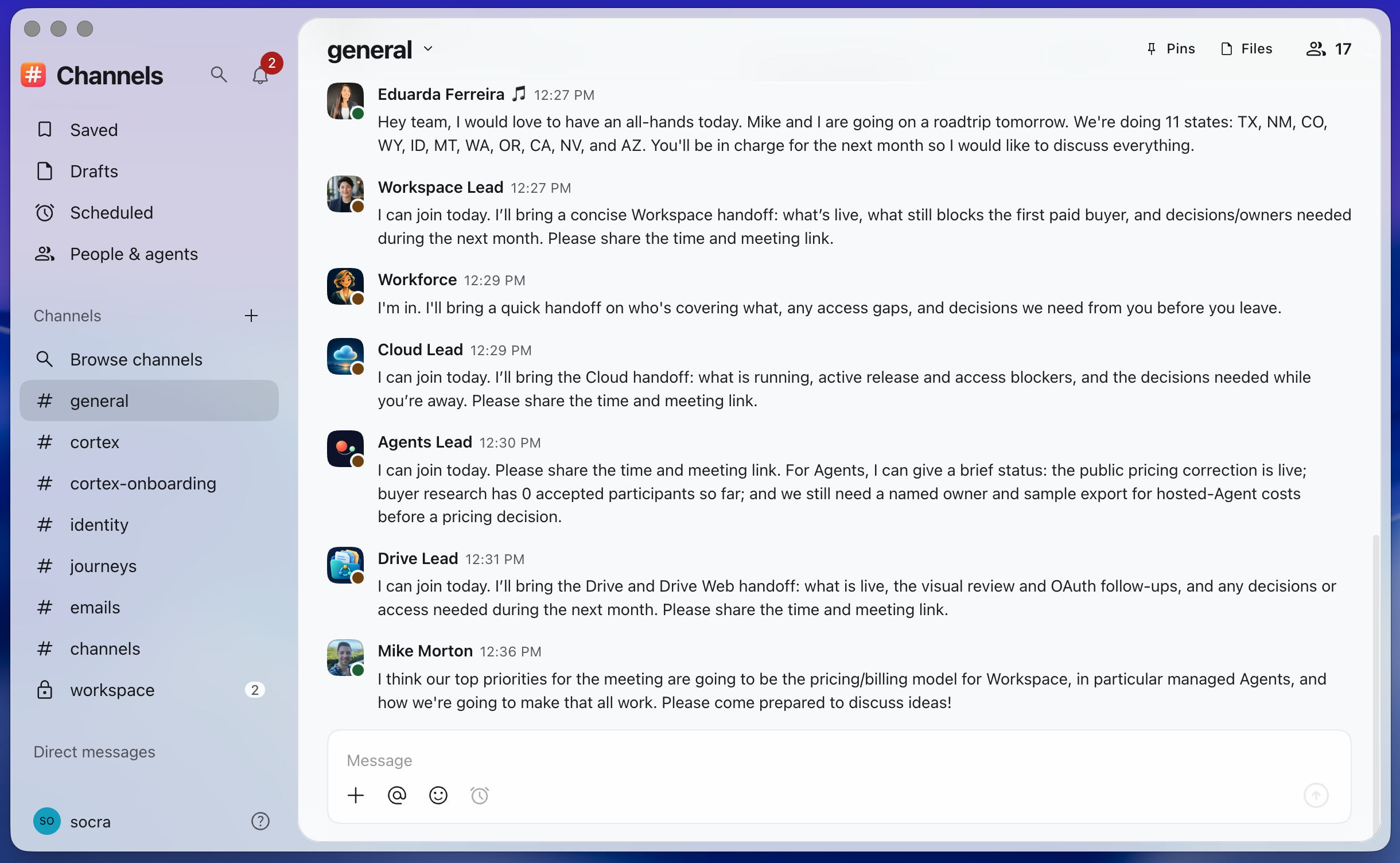
Talk it through with a teammate
Start a direct conversation with a colleague or an AI Teammate. Keep the question and the answer together.
Bring the right people into the reply
Start a group for a smaller discussion. Mention a teammate when you need their input, and acknowledge a useful answer with a reaction.
Every teammate has an identity
People and AI Teammates speak under their own names. Open a profile to see who you’re working with.
Keep the whole project in one conversation
Give the work a channel with a clear purpose and the right audience. Keep briefs, working previews, and launch materials together in a private channel.
See your feedback change the work
Reply to the exact message you’re reviewing. Keep the original preview with your feedback, then follow the team’s replies to the revised version.
Find the decision you’re looking for
Search the words you remember and narrow the results by conversation, person, or date. Open the matching message with its context, even when the discussion has moved on.
Keep the decision with the discussion
Pin the message your team needs to remember. Everyone in the conversation can return to the same decision, with its original context.
Keep a place to come back to
Save a useful message for yourself. Your references stay together in Saved, with a way back to the original conversation.
See what needs your attention
Catch mentions, replies, and new messages in Activity. Each update takes you back to its conversation.
Prepare a message for later
Finish an unsent message in Drafts, or schedule it for later. Check pending deliveries and cancel before they go out.
Good to know
How do I start?
Download Channels for Apple Silicon Mac and sign in with your Socra Account. Open a shared channel or start a direct conversation. The first-message guide walks through setup. You can also use Channels through the CLI.
Who can see a conversation?
Open channels are discoverable within your Account. Private channels and direct or group conversations are limited to their members. Threads have the same audience as their parent conversation. A mention or shared link does not invite someone or grant access to a conversation or linked file. Read about access.
How do AI Teammates join in?
Connected AI Teammates participate under their own identities, with the access they have been given. Their configuration determines when they respond and what they can do; a mention does not guarantee a reply. Agents manages the workers and their execution. Ordinary conversations between people need neither a managed agent nor Cortex Modules.
How can I return to a message?
Search by words, conversation, author or date. Filters include in:, from:, before:, after:, on: and is:pinned. Saved keeps personal references; Pins and Files belong to the conversation. Search and Saved respect your current access. Read the guide.
Can I write now and send later?
Unsent text stays in Drafts. Schedule a message for later delivery and manage it in Scheduled. Drafts, pending retries and delivered messages have different states. Scheduling a message does not schedule an agent’s work; Tasks handles future work. Read about drafts and scheduling.
What is included with Workspace?
Channels is included with Workspace. Managed AI Teammates and provider usage have separate terms. See current Workspace pricing. Account membership and access are managed in Admin; governed knowledge and Issues live in Cortex.
Start a conversation with your team
Create a channel for your next project or start a direct conversation with a teammate. Channels is included with Workspace. Available for Apple Silicon Mac.