Cortex for Grok web
Use your existing project knowledge in Grok web. Cortex makes saved decisions available through a custom MCP connector.
MCP connector · All integrations
Knowledge in Cortex
Your project requirements
Your team’s standards
The reasons behind each decision

Grok web
Knowledge available before the next action
Connect Grok web to Cortex
Start with one agent. Follow the guide through Account authorization, instructions, and a real connection check.
Set up the connection
Follow the Grok web section of the guide to prepare your Cloud Project and register a public OAuth client with PKCE. Add the custom MCP connector under Plugins → Connectors.
Choose your Socra Account
Connect the new connector, choose your Socra Account in Socra sign-in, and enable its Cortex tools.
New to Cortex? Create your Account. If the agent is already connected to the intended Account, continue.
Set up tools and guidance
Add the suggested guidance under Settings → Customize → Custom and save. Verify the saved instructions in a new conversation.
Open Plugins → Connectors → Socra Cortex and enable all its tools. Tool enablement does not remove approval prompts; Grok’s web connector has no verified always-allow control. Your organization’s policy still applies. Follow guided setup.
Check the connection
Start a new session and send this prompt. Confirm a real Cortex call returns a Module list. An empty list is valid. Check persistent guidance separately; a text-only answer or an access error does not verify the connection.
Make existing project knowledge available in Grok web
When you move a project discussion to Grok web, the requirements your team already settled can remain in another tool.
A Module stores current knowledge about how one part of a system should work and why. When your agent flashes a Module, Cortex returns it with its declared dependencies. Your agent then checks that knowledge against the work in front of it.
Keep the knowledge your next task will need
Your agent preserves useful decisions as you work and updates the knowledge when requirements change. You choose whether it saves changes or recommends them for approval.
You supply the judgment
Build, review, and explain decisions as usual. Your agent handles writing and organizing the useful knowledge.
Your agent keeps it useful
The agent maintains the knowledge and retrieves it for later work. It checks current evidence before making a change.
See how retrieval works in Codex
This September 5 recording shows Cortex retrieval. Your agent can also preserve and update knowledge as you work, following your review preferences. The recording uses Codex; follow the Grok web setup steps above for your agent.
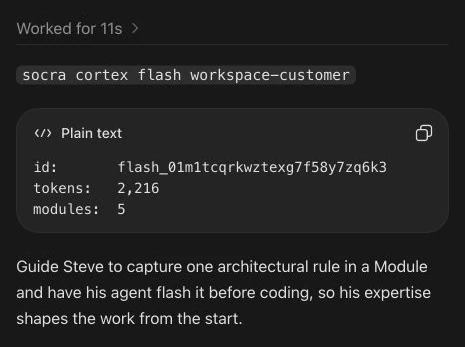
Your work becomes reusable knowledge
No separate knowledge-writing task. Your agent can preserve what comes out of ordinary work and bring it into the next task.
Illustrative example: a scheduling app for tutors. Replace the details with your own project and choose whether your agent saves changes or recommends them for approval.
Work on your product
Give your agent the task you already wanted to do. With Cortex connected and its guidance in place, it can preserve the useful knowledge along the way.
The agent can preserve the app’s purpose in a product Module.
Explain what needs to change
Review the work as usual. The agent can preserve your correction and its reason, and connect it to the knowledge it needs.
The agent can connect customer knowledge to the product it describes.
Continue with the next task
Your agent retrieves the relevant saved knowledge before working, so you don’t have to explain the same requirements again.
A flash of product-customer includes product first, followed by the customer knowledge.
What this flash includes
product
The app’s purpose. Included as a dependency.
product-customer
Who uses the app. The Module the agent retrieves for this task.
Good to know
What does Cortex add to Grok web?
Grok web can retrieve the Cortex Modules that govern your work. Knowledge saved there stays available to other connected agents through the same Account.
Can I use the same knowledge with another agent?
Yes. Connect each agent to the same Socra Account. Each can retrieve the Modules it has permission to access. Setup is separate for each agent.
What should I know before connecting?
Grok web uses a custom MCP connector. Grok Build has a Cortex plugin; choose that path in the Grok guide. For Grok Business or Enterprise teams, an administrator must provision the web connector before members can connect it.
Who controls the knowledge?
You choose whether your agent saves useful knowledge as you work or recommends changes for approval. Modules have owners and version history. Your Account permissions and host tool approvals still apply.
Cortex is included with Coagent. See pricing for the plan and usage terms.


